
What you need
- macOS 12 or later.
- An Intel Mac or an Apple Silicon Mac. On Apple Silicon, LyveFlow runs through Rosetta, and macOS offers to install it the first time.
- Game control works on Windows only for now. Everything else in LyveFlow works on a Mac.
Install
- Download LyveFlow for Mac from the download page.
- Open the file you downloaded.
- Drag LyveFlow into Applications.
The first time you open it
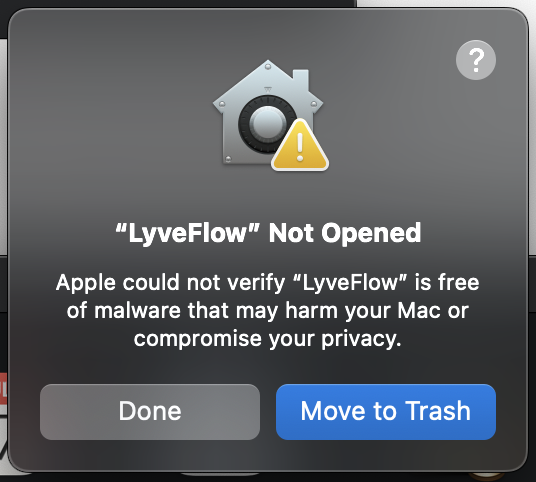
LyveFlow is not signed with an Apple certificate yet, so macOS asks you to allow it once.
- Open LyveFlow from Applications. macOS says it could not verify LyveFlow. Click Done.
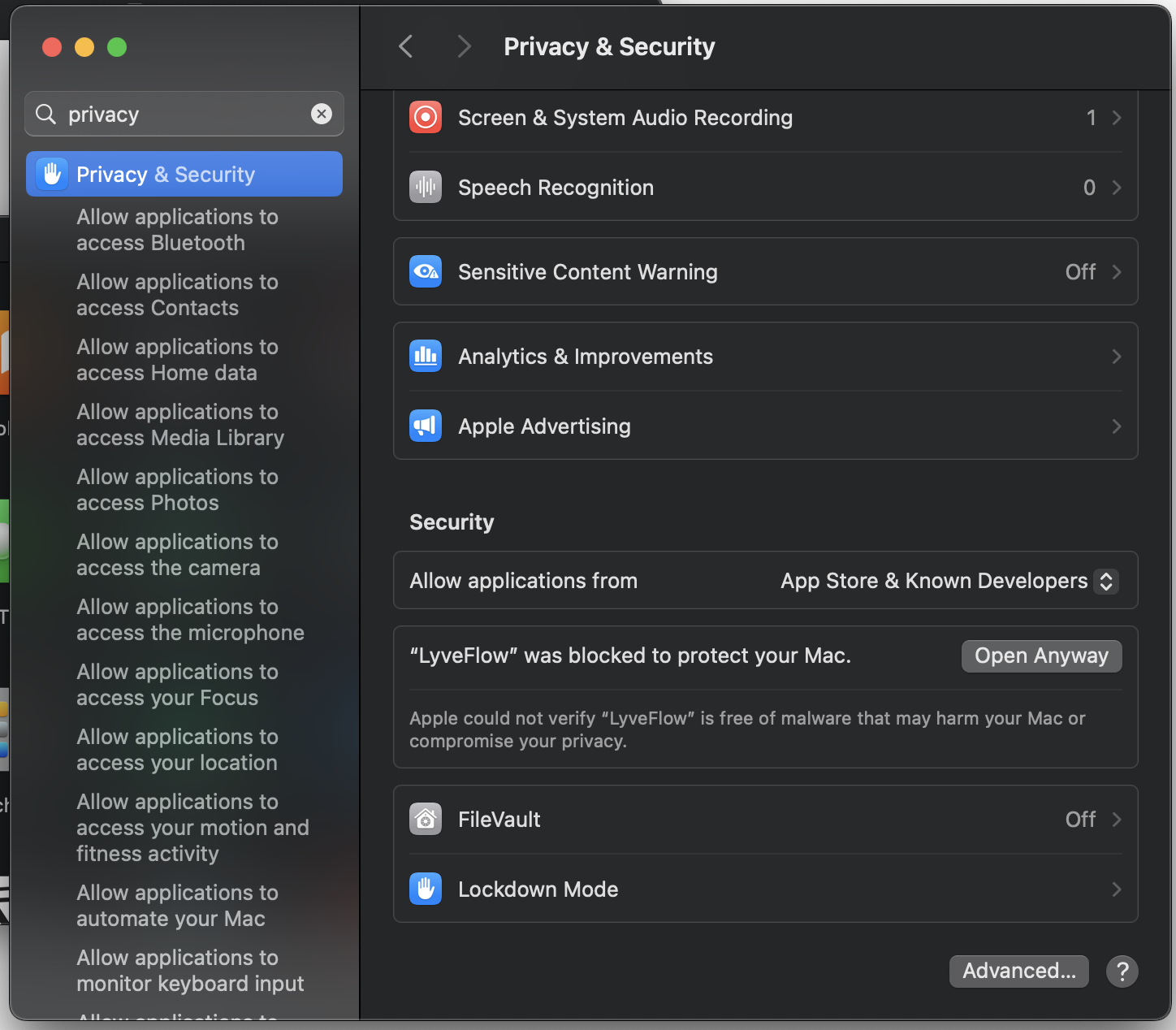
- Open System Settings, then Privacy & Security.
- Scroll down to the line about LyveFlow and click Open Anyway.
- Enter your Mac's password. LyveFlow opens.
On an Apple Silicon Mac, macOS may ask to install Rosetta first. Click Install.
"LyveFlow Safe Storage"
LyveFlow keeps your sign-in and your channel links encrypted in your Mac's keychain. After an update, macOS asks once whether LyveFlow may use its "LyveFlow Safe Storage" item.
Enter your Mac's password and click Always Allow. LyveFlow does not ask again until the next update.
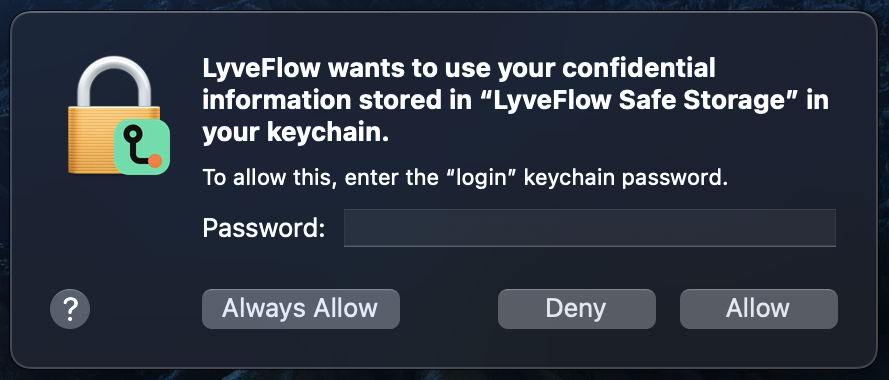
If you click Deny, LyveFlow starts signed out for that launch, and your saved settings wait where they are. Quit LyveFlow, open it again, and click Always Allow to get them back.
Updates
LyveFlow tells you when a new version is out. The top of the window names the new version, and Settings shows a Download button.
- Click Download, then open the file.
- Drag LyveFlow into Applications and replace the old one.
- Open LyveFlow. macOS asks you to allow it again: repeat Open Anyway from Privacy & Security.
- When macOS asks about "LyveFlow Safe Storage", enter your Mac's password and click Always Allow.
Where your data is
Your flows, viewers and settings are in ~/Library/Application Support/LyveFlow. They stay there when you replace the app. To remove LyveFlow completely, drag it from Applications to the Trash, then delete that folder.